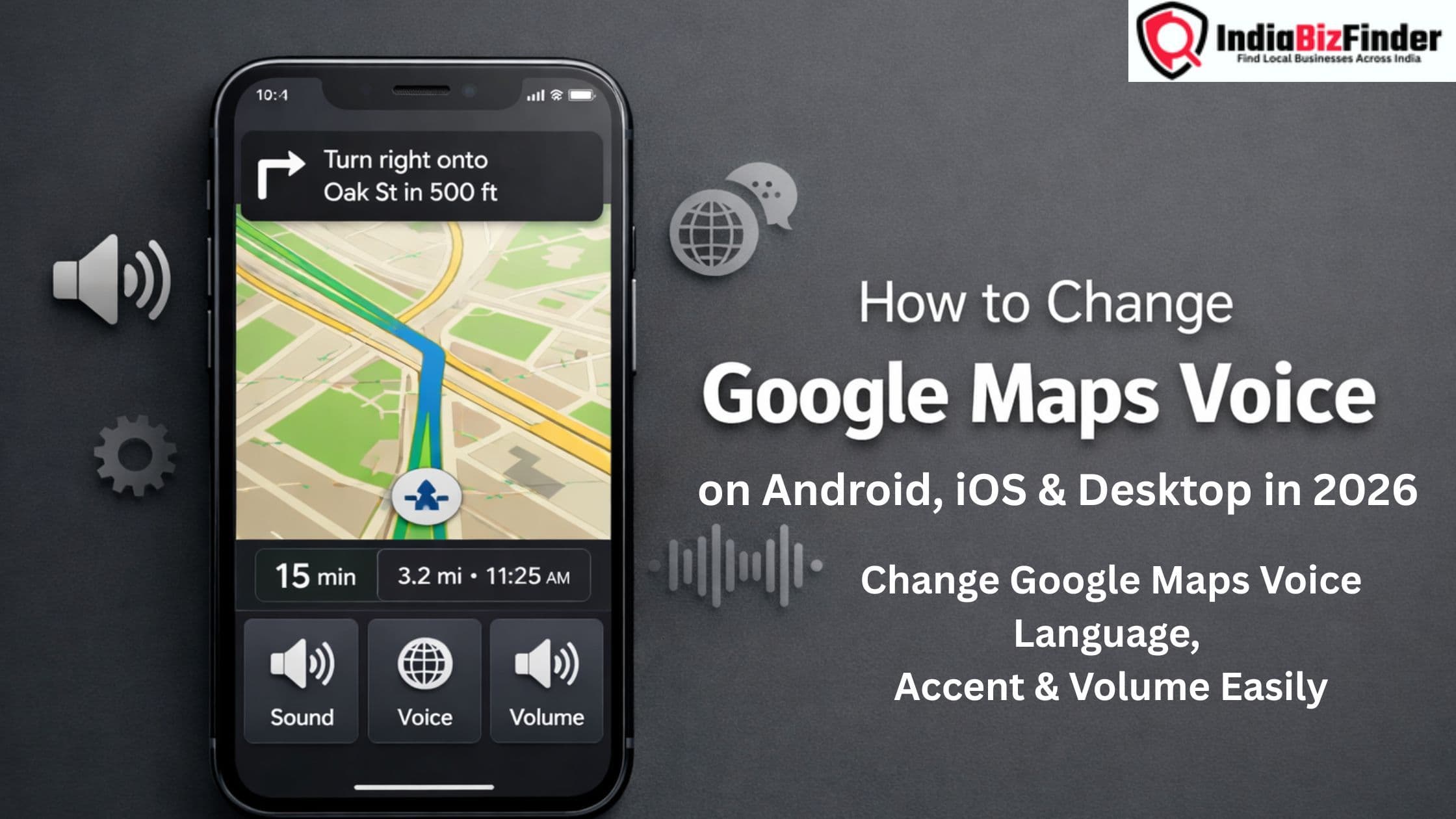
Google Maps is a must-have navigation app for millions of people. From city traffic to cross-country treks, it gets you there faster. One of the most important features of Google Maps is its voice navigation, which provides real-time directions while you focus on driving.
But let’s face it, not everyone likes the default navigation voice. Other users desire an alternative accent, language, or voice style for greater clarity and comfort. If you’re wondering how to change Google Maps voice, this detailed guide will walk you through every possible method across Android, iPhone (iOS), and desktop devices.
Google Maps Voice Navigation
Google Maps with voice navigation provides turn-by-turn directions without the need to stare at their phone screens. It makes it safer, more convenient, and more accessible for drivers, cyclists, and pedestrians.
Google Maps voice directions, powered by text-to-speech technology and personalized according to language, region and device settings. Learning how to change Google Maps voice ensures a smoother navigation experience tailored to your preferences.
Why you’d change Google Maps voice
Here are some reasons why users seek to change Google Maps voice.
- Preference for a different accent or language
- Difficulty understanding the default voice
- Desire for louder or clearer navigation instructions
- Switching between regional languages
- Accessibility needs
- Personal comfort during long trips
Changing the google maps voice improves navigation accuracy and user satisfaction.
Understanding Google Maps Voice Settings
How do voice settings work prior to learning how to change Google Maps voice.
- Google Maps does not offer character voices (like celebrity voices)
- Voice settings depend on:
- App language
- Device system language
- Text-to-speech (TTS) settings
- Voice options vary slightly between Android and iOS
Most voice customizations are done through language and navigation settings rather than selecting a specific “voice name.”
Change Google maps voice Android

Android users also get more control over voice and TTS settings. Follow these steps carefully:
Step-by-Step Instructions
- Open the Google Maps app
- Tap on your profile picture (top right corner)
- Select Settings
- Tap on Navigation settings
- Scroll to Sound & voice
- Tap on Voice selection
- Choose your preferred language or accent
Your Google Maps voice will switch immediately upon selection.
Change Google Maps Voice with Text-to-Speech (Android)
If you want deeper customization:
- Open Phone Settings
- Go to Accessibility or Language & Input
- Tap Text-to-Speech Output
- Select your preferred TTS engine
- Choose language, accent, and speech rate
This approach directly impacts the way Google Maps voice sounds.
How to Change Voice in Google Maps on iPhone (iOS)

iPhone Google maps voice settings are primarily based on system language.
Step-by-Step Instructions
- Open Google Maps
- Tap your profile icon
- Go to Settings
- Tap Navigation
- Select Voice Selection
- Choose your preferred language
P.S. iOS wouldn’t let us select accents directly in Google Maps like Android did.
How to Change Google Maps Voice Language

Changing the voice language also changes the navigation instructions language.
On Android
- Google Maps → Settings
- Navigation settings
- Voice selection
- Choose a different language
On iPhone
- Change your Google Maps app language
- Or change your iPhone system language
Google Maps voice updates automatically to the language selected.
How to Change Google Maps Voice Accent
Accents come with select languages only.
Available Accent Options (Example)
- English (US)
- English (UK)
- English (India)
- English (Australia)
Steps (Android Only)
- Open Google Maps
- Settings → Navigation settings
- Voice selection
- Choose preferred accent
Accents not available in all regions or on all devices.
Read More:
How to Add Location in Google Map
Business Listing Sites For 2026
25 Powerful Business Growth Ideas
How to Change Google Maps Voice Volume

If the voice is too soft or loud, its volume) helps.
Steps to Change Voice Volume
- Open Google Maps
- Settings → Navigation settings
- Tap Sound & voice
- Choose:
- Softer
- Normal
- Louder
You can also control volume with your phone’s hardware buttons while navigating.
How to switch up google maps voice during navigation
You don’t need to pause navigation to change voice settings.
Quick Method
- Start navigation
- Tap the speaker icon on the screen
- Adjust:
- Voice on/off
- Alerts only
- Mute voice
For more profound changes, leave navigation and change settings.
Change Google Maps Voice on Desktop
Google Maps on desktop browsers has restricted voice support.
Key Points
- Desktop Google Maps does not support full voice navigation
- Voice directions depend on browser TTS settings
- Language can be changed via Google account preferences
For complete voice command, use the mobile apps.
Typical Problems When Switching Google Maps Voice
Users experience issues when attempting to change Google Maps voice.
- Voice not changing after selection
- Voice language mismatch
- No sound during navigation
- Accent option missing
- Voice cuts off suddenly
99% of problems have to do with device or system settings.
Google Maps voice not working Fixing
Try these solutions:
- Increase phone media volume
- Ensure Google Maps has sound permission
- Update Google Maps app
- Restart your device
- Check Bluetooth connection (car audio)
- Reset text-to-speech settings
These fixes solve the majority of voice issues.
Tips to personalize your Google Maps voice experience
To get the best experience:
- Use high-quality TTS engines
- Choose clear and familiar accents
- Keep navigation volume louder than music
- Update your app regularly
- Test voice before starting a long trip
Small changes can make navigation much more clear.
Read More:
Which On Page Element Carries the Most Weight for SEO
Conclusion
Knowing how to change voice in Google Maps allows you to personalize your navigation experience for better comfort, clarity, and accessibility. Need to switch the language, accent or volume, Google Maps provides flexibility—particularly on Android.
Although iPhone users have a bit less freedom when it comes to customization, setting system language and navigation preferences still allows for impactful regulation. With this how-to’s step-by-step directions, you’ll be able to customize Google Maps voice with ease and experience seamless, stress-free navigation whenever you hit the road.
Searching in good business listing website in India, register on IndiaBizFinder.com
Frequently Asked Questions (FAQs)
Is there a way to make Google Maps voice a celebrity voice?
No, Google Maps doesn’t do celeb or character voices.
Can I use a boy or girl voice
Google Maps chooses the voice itself according to language and TTS engine.
Why can’t I locate accent options?
Accents available vary by region and language.
Does switching phone language affect google maps voice
Yeah, Google Maps voice frequently listens to system language.
Is Google Maps voice free?
Yup, the voice navigation is entirely free!
How do I get a different voice for Google Maps?
You can get a different Google Maps voice by changing the navigation voice language or accent in the app’s Navigation settings. On Android, you can also adjust the text-to-speech voice from your phone settings.
How do I change the voice on Google Maps on my iPhone?
Open Google Maps → Profile picture → Settings → Navigation → Voice selection, then choose a different language. iPhone users are not able to switch accents independently.
Can I use a custom voice for Google Maps?
No, Google Maps does not support custom or celebrity voices. And you can only pick from the system voices.
How do I change the audio settings on Google Maps?
Go to Google Maps → Settings → Navigation settings → Sound & voice to adjust voice volume, mute voice, or select alerts-only mode.
How do you change Google's voice?
Change Google’s voice by updating the language and text-to-speech settings on your device. This hits Google Maps and other Google voice stuff.
Can I pick my own Google voice number?
No, Google Maps does not allow selecting specific voice numbers. Voices are automatically assigned based on language and system.